When “same document” isn’t actually the same
You’re handed “the same” contract twice: same filename, same page count, same headers. Then Legal flags that the indemnity reads differently, or Procurement can’t reconcile a price table. That mismatch usually isn’t malice; it’s process. One version may be a scan run through OCR, another a regenerated PDF from Word, another a copy where tracked changes were accepted but a footer date didn’t update.
Many comparisons rely on what the file looks like, not what it says. A line break, hidden character, different numbering style, or reflowed table can create noise that hides the real change. Treat “same document” as a claim to test, not a fact. Your goal is to separate formatting drift from meaning drift without spending hours reading end-to-end.
What counts as a meaningful difference here?
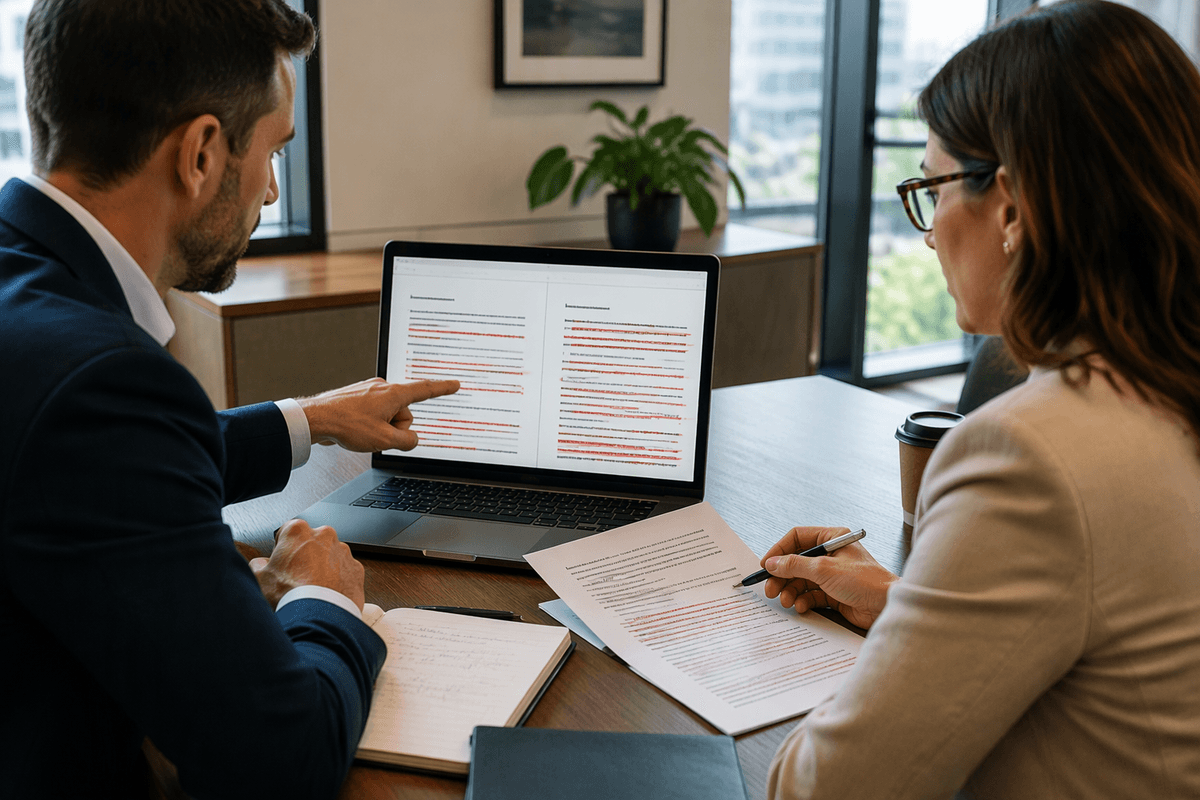
A useful document comparison focuses on changes that affect obligations, risk, costs, deadlines, or auditability rather than listing every textual difference. Replacing “Affiliate” with “Subsidiary,” changing “may” to “must,” or shortening a deadline from 30 days to 10 business days can materially alter an agreement, even when the rest remains unchanged. Changes to approval authority, ownership of deliverables, governing law, termination rights, or liability caps also deserve close attention. For policies and technical specifications, pay particular attention to scope exclusions, thresholds, acceptance criteria, and reporting requirements.
Paragraph reflow, renumbering, punctuation changes, and updated page headers may be inconsequential, but not always. A revised section number can break cross-references, a comma can affect interpretation, and a changed identifier or part number can disrupt downstream systems. Define the categories of meaningful changes before reviewing the documents. This helps direct attention toward revisions that could have real consequences without spending equal time on every formatting difference.
Pick the right comparison method for your files
You can save hours by matching the comparison method to the file type you actually have, not the one you wish you had. If both versions come from the same editable source (two Word files, two clean text exports), use a text-based compare first. It aligns clauses, catches word-level changes, and won’t overreact to page breaks. When you’re comparing PDFs, decide whether they’re “true text” PDFs or scanned images. True text PDFs can usually be compared by extracting text plus structure (headings, lists, clause numbers). Scans need OCR before anything else, and OCR errors (1 vs l, missing symbols, dropped columns) become new differences you must treat as suspects, not facts.
Tables and exhibits often need their own lane. A visual PDF diff may show a whole table changed when only one cell shifted. A structured approach—extract rows/columns, then compare values—reduces noise but costs setup time and sometimes tooling. The practical rule: start with the lowest-noise method available, then escalate only where the risk sits.
How to use AI to extract changes reliably
Asking an AI tool to compare two files and explain “what changed” may work for straightforward edits, but subtle wording changes are easy to miss. The model might paraphrase a clause, merge nearby provisions, or summarize away a single word that shifts an obligation. A more reliable process starts by converting both versions into clean, comparable text while preserving headings, clause numbers, list levels, and table boundaries.
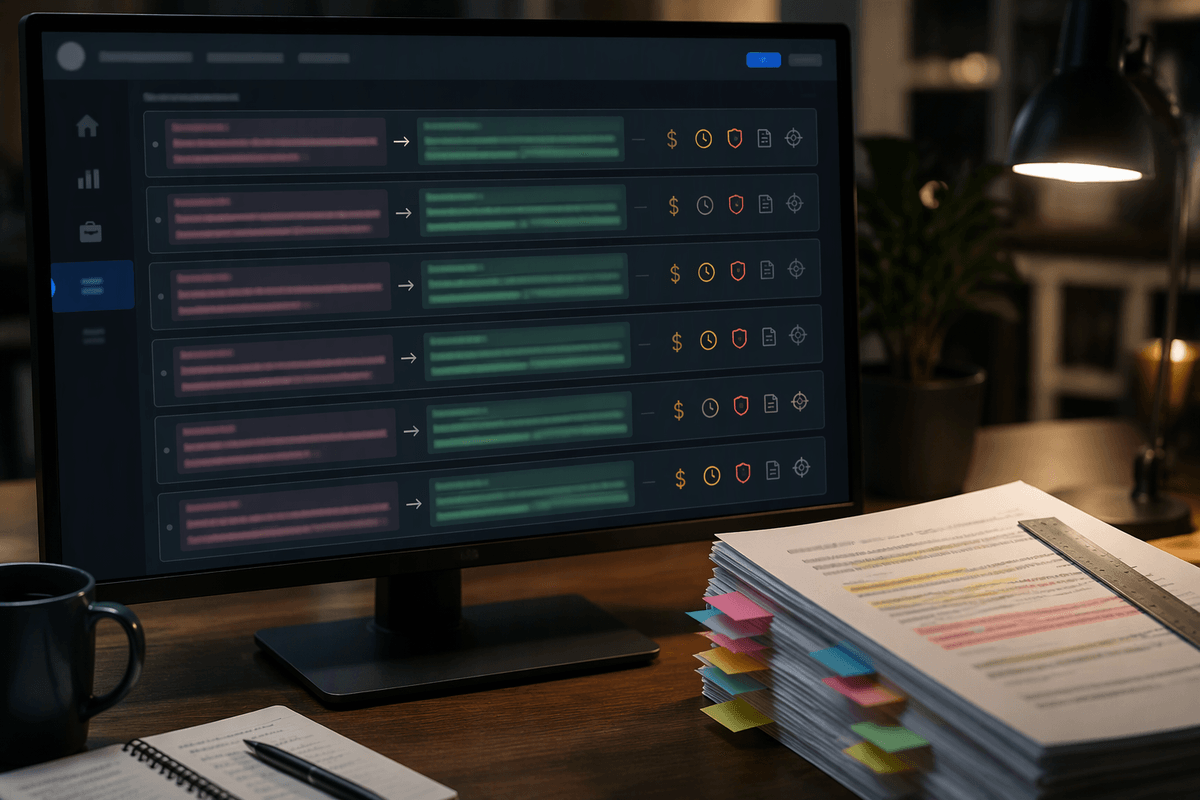
Ask the model to produce a structured change log with three required fields: the location of each change, exact quotations from the original and revised versions, and a brief impact category such as cost, timing, liability, compliance, or scope. These details make each finding easier to trace back to the documents and verify independently.
AI is useful for identifying candidate changes, grouping related edits, and flagging patterns that deserve attention, including changes to “must” and “may,” thresholds, definitions, termination provisions, and governing law. Treat its output as a first-pass review, not a final judgment. Preparing comparable text takes time, and narrative clauses, tables, and exhibits may need separate review passes. That preparation makes the results more consistent and helps reviewers verify important changes quickly and escalate the right issues.
Verification: turn AI findings into decisions
You know the AI output is usable when every claimed change is anchored to the source text. Start by requiring “before” and “after” quotes with a location marker you can jump to (clause number, heading path, table row ID). If the model can’t quote it, treat it as a lead, not a finding. Then run a quick conflict sort: changes to money, term, termination, liability, confidentiality, data use, audit rights, governing law, and service levels go to the top, even if the wording looks minor.
Verification becomes fast when you separate spot-checking from sign-off. Spot-check a sample of low-risk edits to validate that the pipeline (extraction, OCR, prompts) isn’t inventing differences, then fully check every high-risk item against the original files. For each high-risk change, confirm three things: the exact wording, the scope it applies to (which products, sites, affiliates, time period), and whether references still resolve (cross-references, definitions, exhibit pointers). If you can’t review everything, you need a rule that anything unverified in a high-risk category is automatically escalated, not silently accepted.
Decisions should come out of the change log in a consistent form: approve (verified, low impact), revise (send redlines for specific clauses), or escalate (legal/compliance review with the cited excerpts). That turns “AI found differences” into an audit-friendly record of what was checked, what was trusted, and what still needs a human to own the risk.
Avoid the traps: scans, tables, and sneaky edits
A familiar failure mode is believing the extraction step is “done” because you can select text. Scans and “image-heavy” PDFs often mix real text, rasterized pages, and OCR layers. That’s how you get phantom edits: “1” becomes “l,” symbols drop (%, ≤), or a line vanishes at a page break. Treat OCR output as an intermediate artifact that needs its own QA. If the AI flags a critical change that you can’t find by searching the original PDF, assume an OCR miss and re-run with higher settings or a different OCR engine before escalating.
Tables create the opposite problem: true changes hide inside visual churn. A single cell update can reflow widths, wrap text, or reorder columns, making a page-diff look catastrophic. Normalize tables into row/column text with stable keys (item ID, SKU, milestone name) and compare values, not layout. Also watch for “sneaky” edits that evade casual review: definition tweaks, cross-reference renumbering, and footnote changes that quietly rewrite scope.
A repeatable checklist for safer document comparison
The moment you receive “Version A” and “Version B,” log basics (source, date, who sent, file type) and create a read-only working copy. Normalize both into comparable text: preserve headings, clause numbers, list levels, and table cells as explicit markers; note any pages that are scanned or image-heavy. Run a low-noise compare first (text-based when possible), then use AI to produce a structured change log with location, exact before/after quotes, and an impact tag.
Verify by rule: no quote, no finding; high-risk categories (money, term, termination, liability, confidentiality, data use, audit rights, governing law, SLAs) get full review against the original files. Spot-check a small sample of low-risk edits to validate extraction and OCR quality, and re-OCR or re-extract if search fails or symbols look suspect. Close with a decision record per change: approve, revise with specific redlines, or escalate with cited excerpts and a named human sign-off.