What Magic Studio is (and who it helps)
You’ve probably had the moment where you need a clean graphic fast—a social post, a flyer, a slide—and you’re choosing between “good enough” and “I’ll fix it later.” Canva Magic Studio is Canva’s bundle of AI features that helps you generate, edit, and adapt designs with fewer manual steps. It’s most useful for non-designers who already work in Canva and want speed: rewriting copy, generating images, removing backgrounds, resizing for multiple formats, and producing quick variations for testing.
It helps most when your starting point is clear (a template, a rough draft, a product photo, a few brand colors). It’s less reliable when you need highly specific art direction or strict brand compliance without setup, because AI outputs can drift in tone, typography, and visual consistency.
Where it fits in a real design workflow
A common workflow problem isn’t “make a design from nothing,” it’s “turn one decent draft into ten usable assets.” Magic Studio fits best in the messy middle: you start with a template or an existing design, then use AI to speed up the repetitive parts—rough copy, first-pass visuals, cleanup, and resizing—before you do a quick human quality pass.
For a social post, that often looks like: drop in your product photo, remove the background, generate or refine supporting text, then create two to four variations to test. For presentations, it’s more about polishing: rewriting dense bullets into clearer lines, generating supporting images when stock doesn’t fit, and keeping layouts consistent across slides. For ads, the value is iteration: fast headline/body options and multiple crops per platform. You still need to check accuracy, legibility on mobile, and whether the results actually match your brand.
The core tools you’ll actually use often

You’ll likely get the most mileage from a small set of tools that remove friction in everyday production. Background Remover is the obvious workhorse: it turns messy product photos and headshots into clean cutouts you can reuse across posts, slides, and thumbnails without reopening a separate editor. Magic Resize (and similar format-switching options) is the other time-saver, especially when you need the same message in square, vertical, and wide layouts—just plan to nudge text back into place afterward.
On the content side, Magic Write is most useful as a rewriting engine, not a source of truth: tighten headlines, shorten captions, and generate a few tone variations, then pick and edit. For visuals, Text to Image can fill gaps when stock photos don’t match, but it’s best treated as “supporting art” rather than a hero image. AI can generate infinite options, so set a small number of variants and move on.
Prompting and inputs that improve results
The quality of Canva AI output depends heavily on how clearly the task is defined. Start with the intended audience, the channel where the content will appear, and one primary goal, such as generating clicks, encouraging sign-ups, or explaining a product. For Magic Write, provide your draft along with a target word count, reading level, and tone, such as “confident, plain language, no hype.” Include essential details such as prices, dates, and disclaimers so the tool does not invent or alter them. When you need several options, specify distinct approaches, such as benefit-led, evidence-led, or urgency-led, rather than requesting generic variations.
Text to Image works better with a clear visual brief. Describe the subject, setting, style, colors, and elements to avoid. For example, “Minimal flat illustration, two-color palette, no text, empty space on the right for a headline” gives the tool a more concrete direction than a vague request for an attractive image. Reference materials, including an existing Canva design, product photo, or brand color palette, can further reduce guesswork. Spending a few extra minutes defining the brief usually saves time compared with repeatedly generating and sorting through mediocre results.
Brand control: keeping everything on-style
You notice the brand drift when you lay assets side by side: the same offer, but different shades of “your” blue, mismatched fonts, and imagery that feels like a different company. In Canva, the fastest fix is to lock the basics before you generate anything. Set your Brand Kit (logos, colors, fonts) and start from a brand-approved template so Magic Write and Text to Image are working inside a visual system you’ve already chosen.
Keep AI on a short leash with reusable building blocks. Create a few “master” layouts (headline, subhead, CTA, image area) and duplicate them for variations instead of letting every new output invent spacing and hierarchy. When using Magic Write, paste a few lines of existing on-brand copy and ask for “same voice, same level of formality,” then compare against that reference. For images, favor consistent styles (photo vs. illustration) and stick to a small palette—otherwise you’ll spend the saved time re-editing to match.
Limits, gotchas, and quality checkpoints
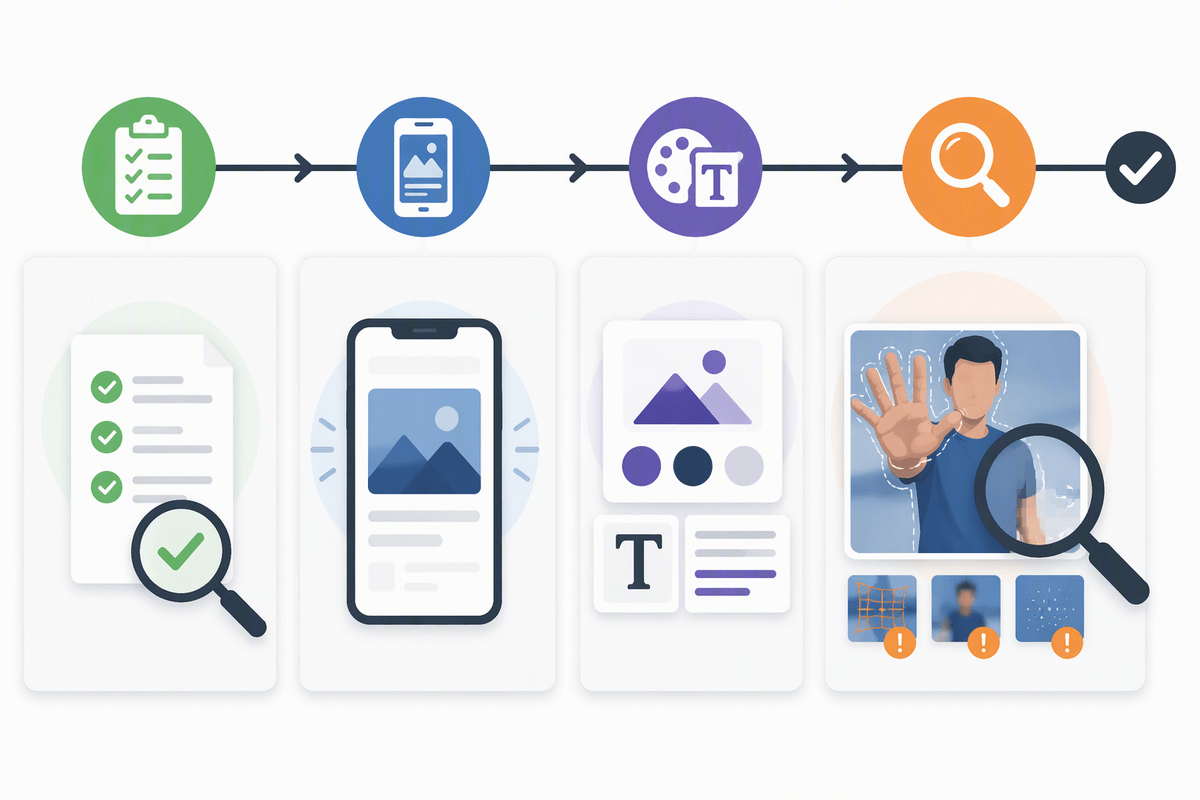
Canva’s AI tools can speed up production, but the results still need careful review. Magic Write may produce polished copy that no longer matches the actual offer, while generated images may differ from the product, target audience, or established visual style. Magic Resize introduces another challenge: headlines may wrap awkwardly, logos can drift toward the edges, and legal text may become too small to read. Generating each asset separately can also leave a campaign looking inconsistent, even when the individual designs appear acceptable.
A short review before publishing helps catch these problems early. Check prices, dates, and product claims against the original source, since Magic Write may fill gaps with unsupported details. Preview the design at mobile size to make sure the main message remains legible without zooming in. Confirm that the correct logo, approved colors, and brand fonts are in place, then inspect generated images for distorted hands, misshapen packaging, or blurred edges around cutouts. Fixing these issues after publication can take far longer than reviewing the assets beforehand.
Choosing Magic Studio versus other AI tools
You’ll get the best results from Magic Studio when your job is “ship a lot of solid assets” inside Canva: social batches, quick promo flyers, slide decks, and resize-heavy campaigns. If you already live in Canva, the workflow wins come from not bouncing between tools, not from top-tier generation quality. Dedicated AI writers can be better for long-form drafts, and pro image generators can offer finer control, but they add export/import steps and make brand consistency harder to police.
A practical rule: use Magic Studio for production and iteration, and reach outside Canva only when you need strict art direction, advanced retouching, or a single hero visual worth extra time.